Login to your Paychex Flex® Engage account.
Click on Goals on the left-hand menu.
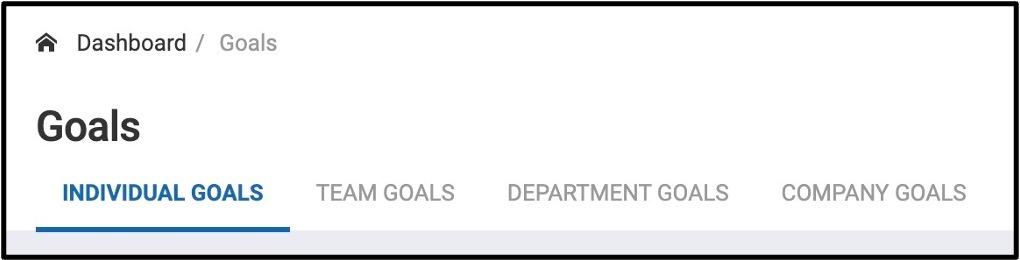
The Goals page will display Individual, Team, Department and Company Goals.

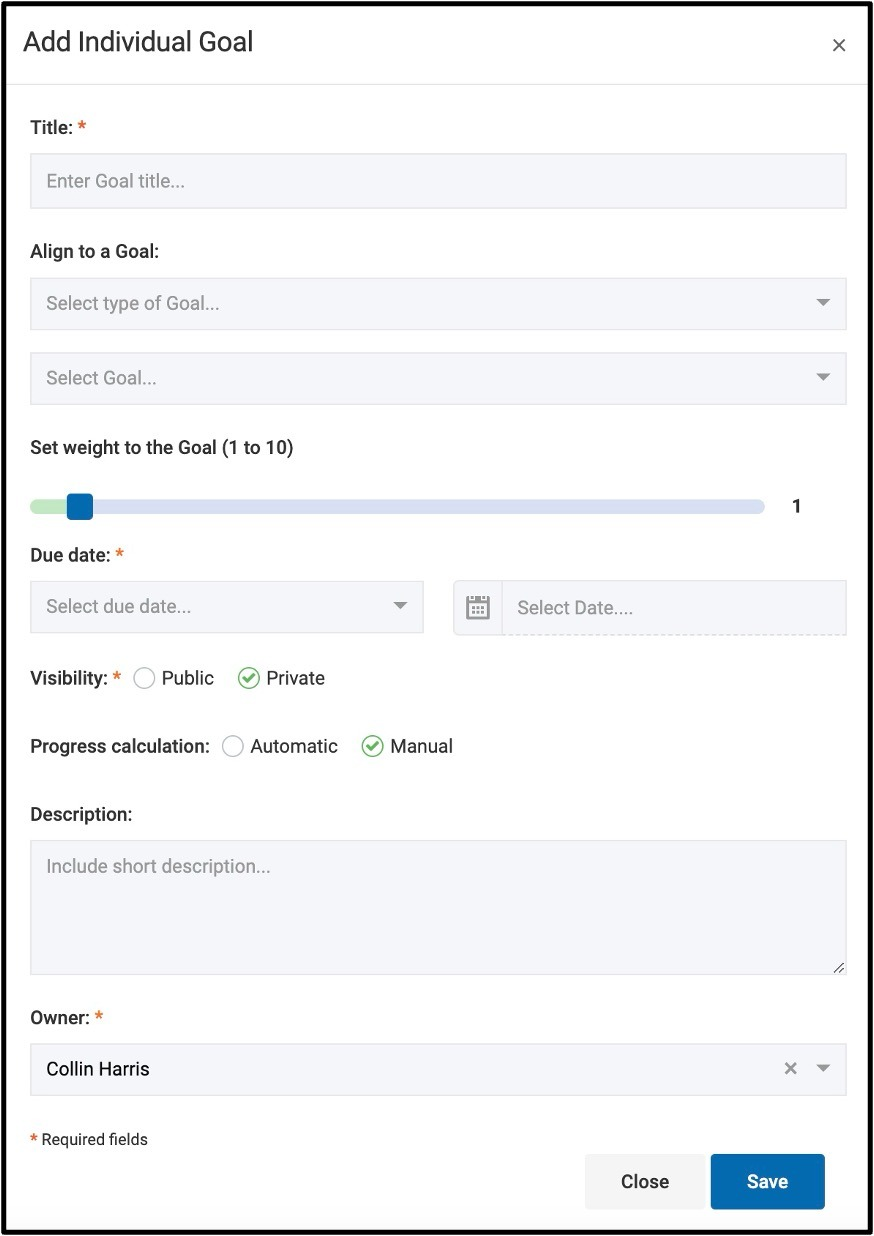
Complete the following fields to create your goal:
Goal Title
Goal Alignment (Optional)
Option to align this individual goal to a team, department or company goal from the dropdown menu
Set a Weight (Optional)
Select a Due Date
This Month, This Quarter, This Year or Custom Date
Visibility
This is defaulted to private, which means only the owner and managers in the hierarchy can view the goal.
If it was set to public, everyone in the organization would be able to view the goal.
Progress Calculation (Automatic or Manual)
When you add a personal goal in the system, by default it will set the goal to be manual. This means you can manually update the goals progress by using the percentage bar.

If you would prefer the goal to be automatic, you can build key results off of the personal goal. The progress on the personal goal would come from the progress of your key results.
Goal Description
Select the Owner. This option will default to the user but can be changed as a manager.
Save each Goal by clicking the Save Button at the bottom of the window.
Was this article helpful?
That’s Great!
Thank you for your feedback
Sorry! We couldn't be helpful
Thank you for your feedback
Feedback sent
We appreciate your effort and will try to fix the article