This article is intended for Paychex Flex® Engage users with the following access:
Users with MANAGER Access Level
Steps to Approve your Employees Goals
The process of Approving Employee Goals typically takes place at the start of the year or quarter, during discussions between the manager and the employee. A scheduled one-on-one meeting is an ideal opportunity for these discussions. Once a goal is approved, employees cannot edit it, but they can update it to reflect progress throughout the year or quarter.
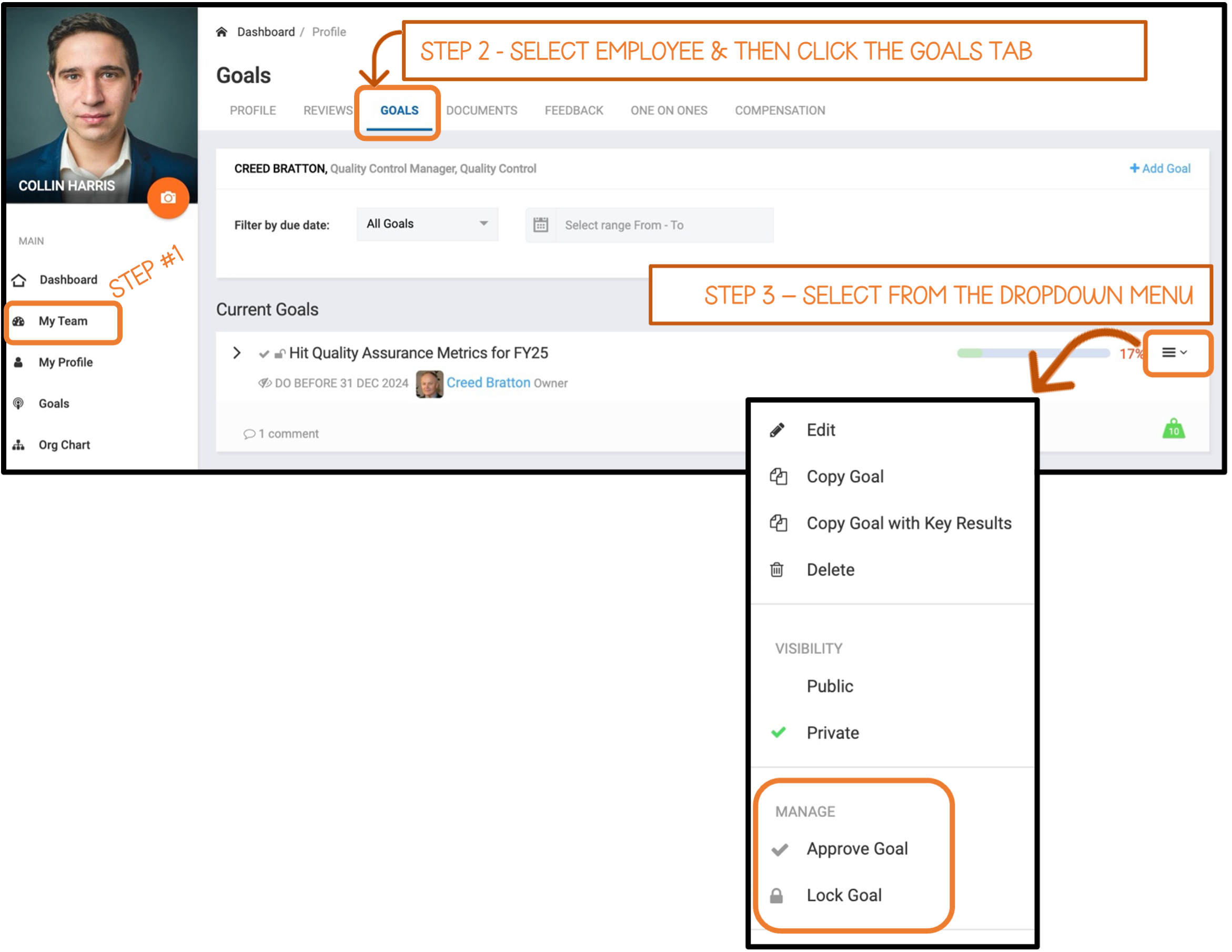
Click on the My Team tab, under the Main Menu.
Select the employee that you would like to review and/or approve goals for.
From the Goals tab when in the employee profile (see below), locate the specific goal(s) that need to be approved.
click the dropdown arrow to the right of the completion percentage.
Select the drop-down menu (to the right of the completion percentage).
Click Approve Goal under the Manage portion of the dropdown.
Steps to Locking your Employees Goals
The process of Locking Employee Goals usually happens at the end of the year or quarter in preparation for year-end performance reviews. Once goals are locked, they are finalized in the platform and can no longer be edited or updated.
From the Goals tab under an employee profile (see above), click the dropdown arrow to the right of the completion percentage.
Click Lock Goal under the Manage portion of the dropdown.
A closed lock will appear to the left of the Goal title to confirm it has been Locked.
A check mark will appear to the left of the Goal title to confirm it has been Approved.
Was this article helpful?
That’s Great!
Thank you for your feedback
Sorry! We couldn't be helpful
Thank you for your feedback
Feedback sent
We appreciate your effort and will try to fix the article