Channels provide a structured way to communicate with groups of employees. To reduce manual management, channels can be configured with auto-enrollment rules that automatically add users based on their profile attributes. Users with Admin privilege are allowed to create and modify channels.
1.1 Channel Types
Messaging supports both Public and Private channels:
Public Channels
Open to all employees
Any employee can access and join
Private Channels
Invite-only
Identified by a lock icon
Membership is managed by admins
Auto-enrollment can be enabled for both channel types.
1.2 Channel Creation
When creating or editing a channel, administrators can enable auto-enrollment filters.
Navigate to Messages > New > Create Channel (or edit an existing channel by clicking on Add Members).
Enter the Channel Name.
Select the Channel Type:
Public: Any employee can browse and join the channel.
Private: Invite-only; only added members can access the channel. A lock icon indicates a private channel.
Configure the enrollment criteria using available filters.
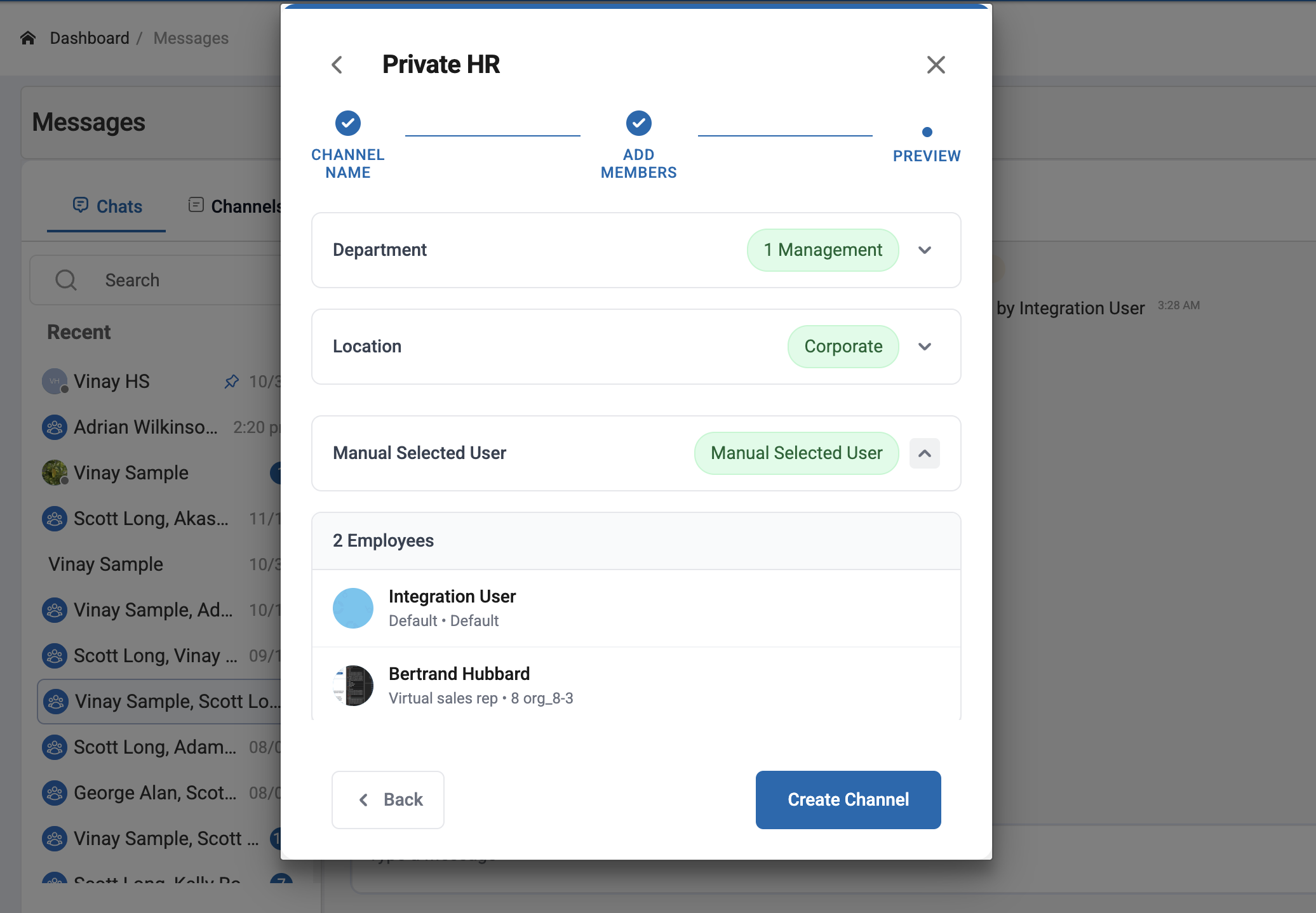
Review all the rules and members in the Preview screen.
Click on Create Channel to save the channel.
Once created, users matching the criteria are automatically added to the channel and users who don't match the criteria or terminated users are removed from the channel.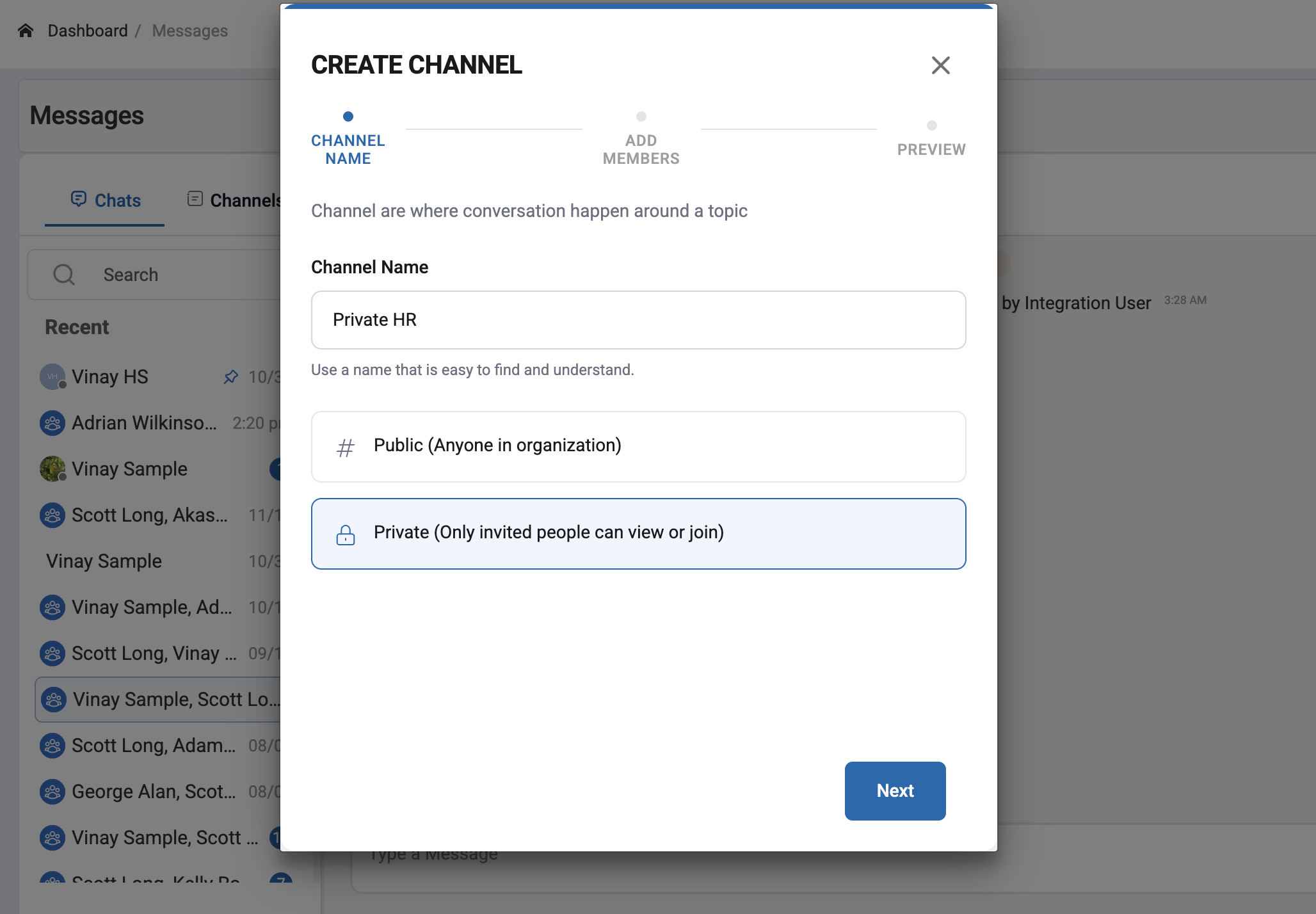
1.3 Auto-Enrollment Filters
Auto-enrollment rules are based on user profile attributes. Multiple filters can be applied together. They are single/multi select.
Department
Team
Position
Location
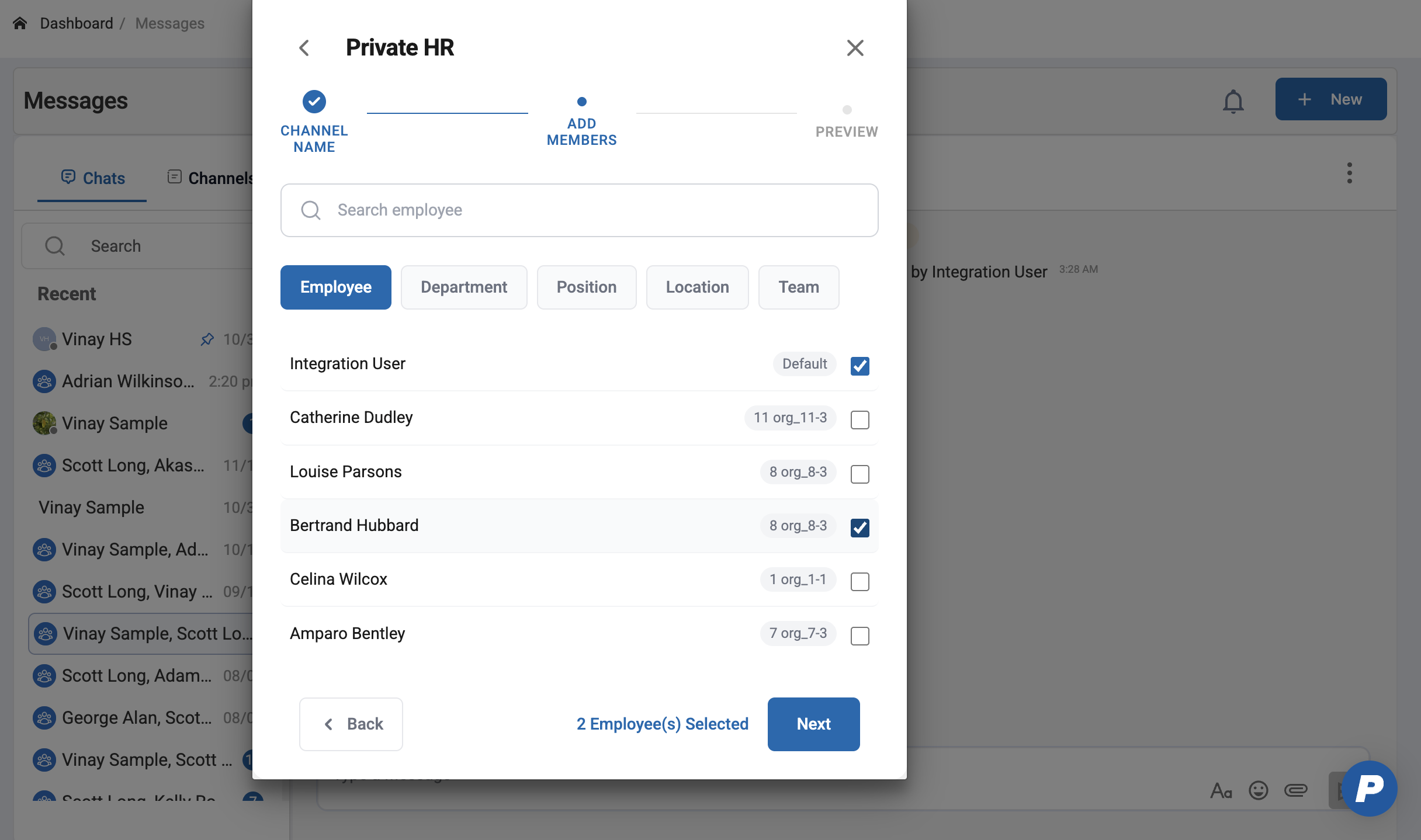
Employee (Manual selection)
Users must match the configured criteria to be enrolled.
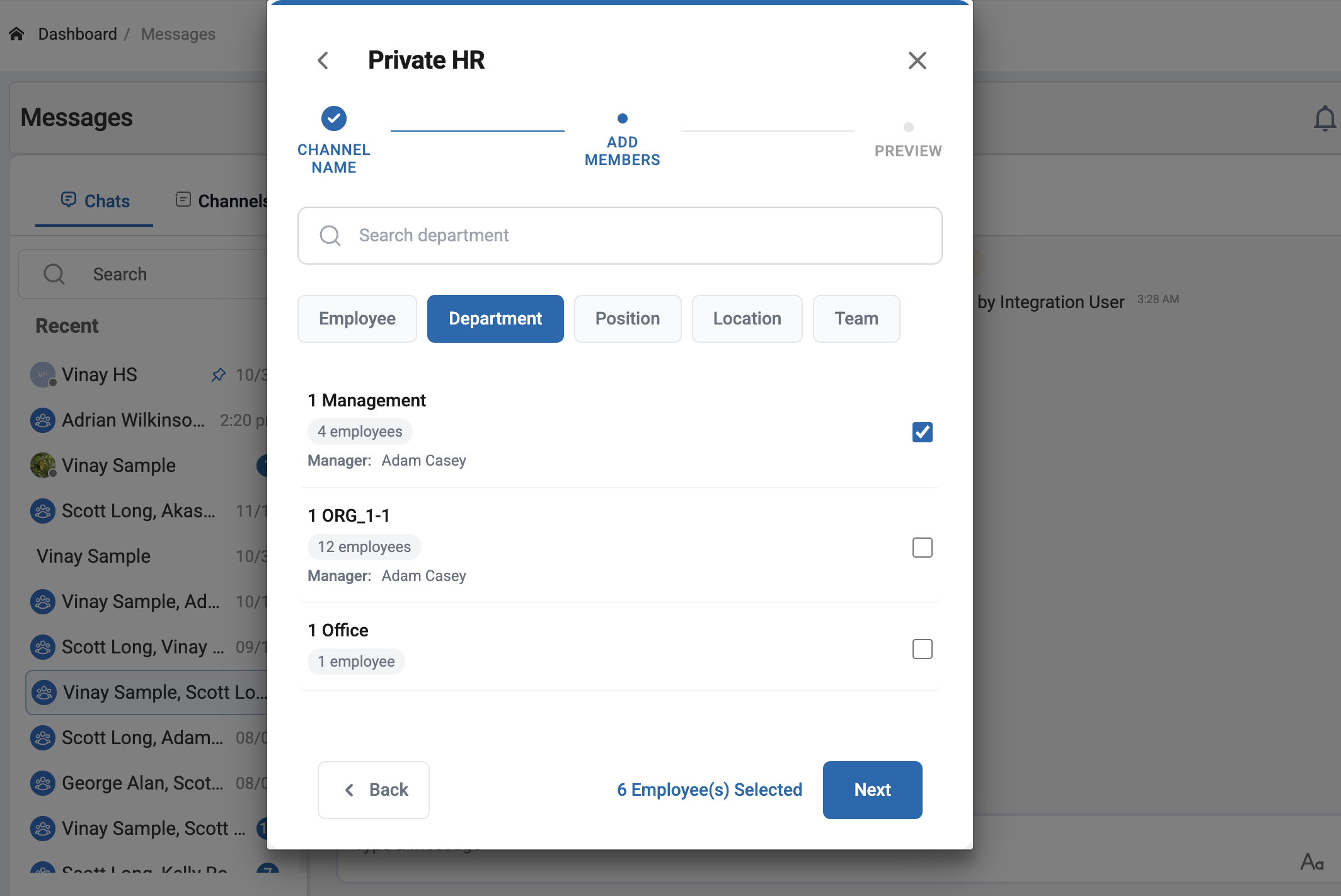 Note: For auto-enrollment to function correctly, each user profile must include accurate metadata as per configured rules.
Auto-enrollment is evaluated in real time:
When a new user joins the organization
When an existing user’s profile is updated
When an existing user is terminated
If the user matches one or more auto-enrollment rules:
They are automatically added to the relevant channels
1.4 Manual Overrides
Auto-enrollment does not restrict manual management.
Users can still be manually added to a channel by selecting single/multi users from Employee filter
Users can be manually removed, even if they match the auto-enrollment criteria
Manual changes do not disable auto-enrollment for other users
This provides flexibility while maintaining automated channel management.
Was this article helpful?
That’s Great!
Thank you for your feedback
Sorry! We couldn't be helpful
Thank you for your feedback
Feedback sent
We appreciate your effort and will try to fix the article