Channel Admins can manage channel settings, members, and notifications directly from the channel interface.
1.1 Channel Management Options
Navigate to Main Menu > Messages.
Select the channel you want to manage from the Channels list.
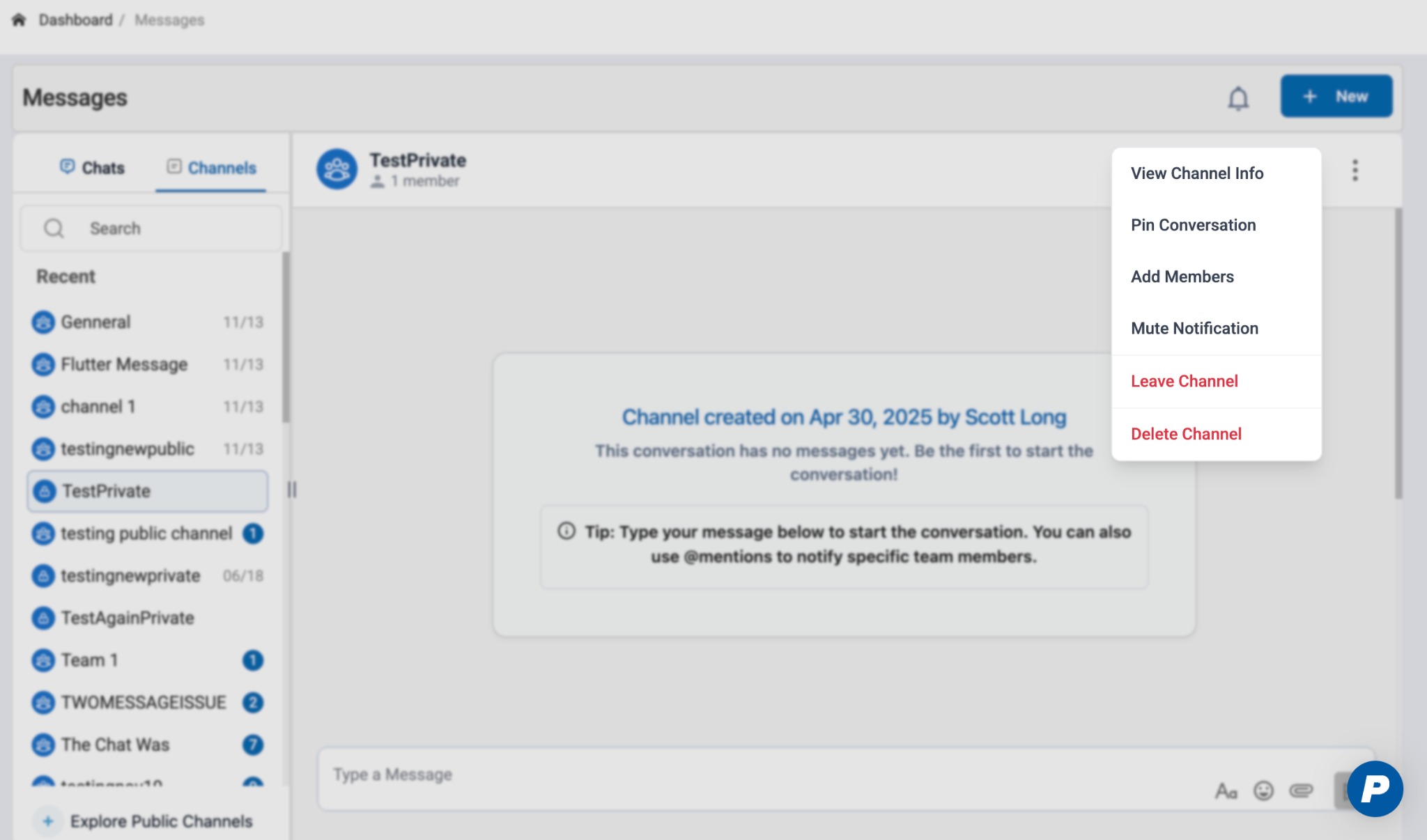
Click the More options (⋮) menu in the top-right corner of the channel header.
This opens the channel actions menu
1.2 Pinning a Channel
Open the More options (⋮) menu.
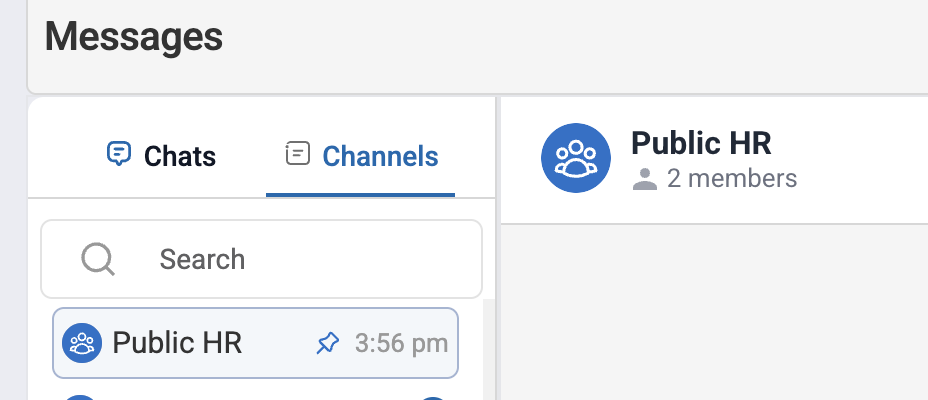
Click Pin Conversation.
The channel is pinned to the top of the user’s channel list for quick access.
Pinning is user-specific and does not affect other members.
1.3 Adding Members to a Channel
Open the More options (⋮) menu.
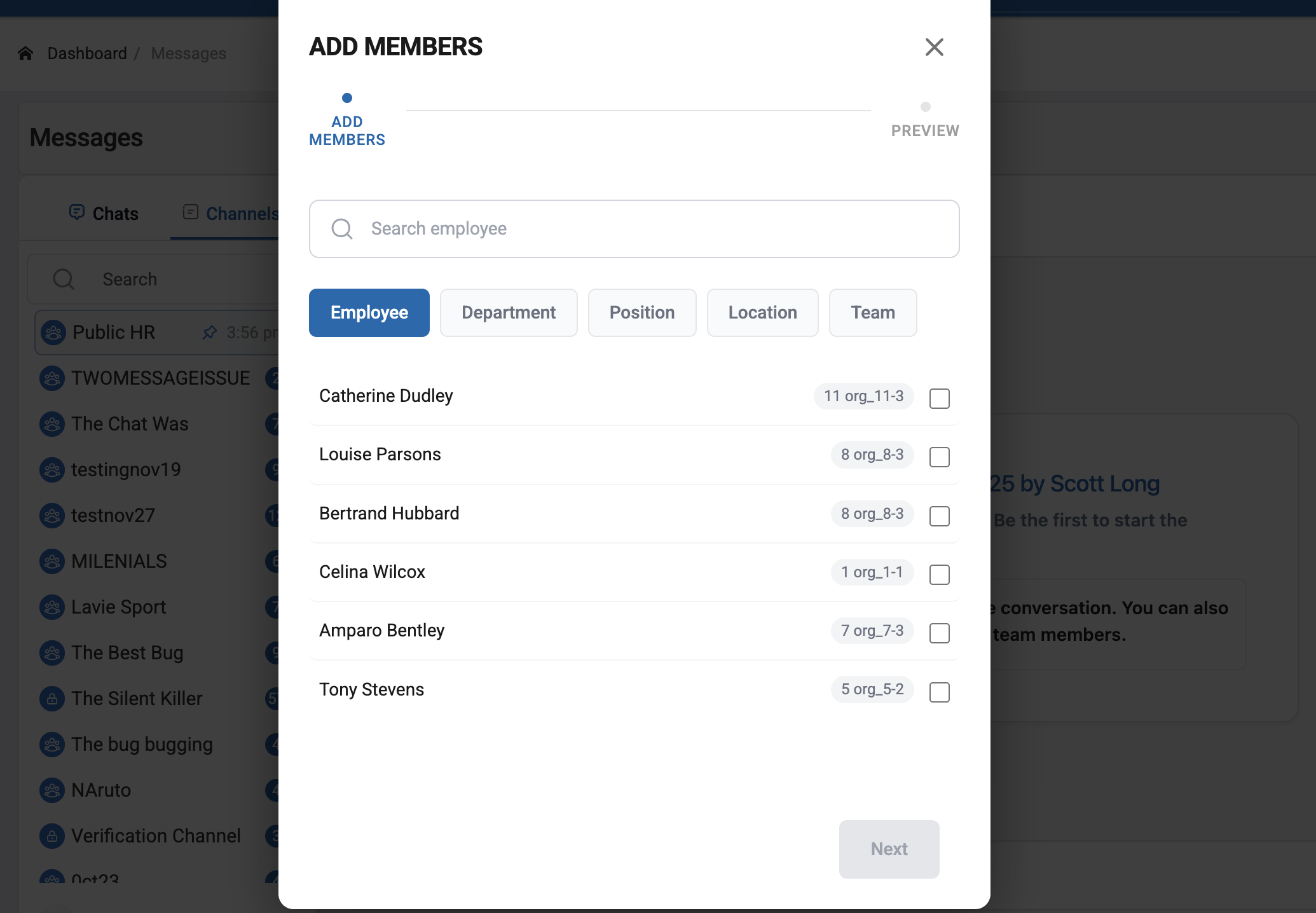
Click Add Members.
This opens up the screen to add auto-enrollment rules if required.
Search for and select users to add.
Confirm to add them to the channel.
Added members gain immediate access to the channel conversation.
1.4 Leaving a Channel
Open the More options (⋮) menu.
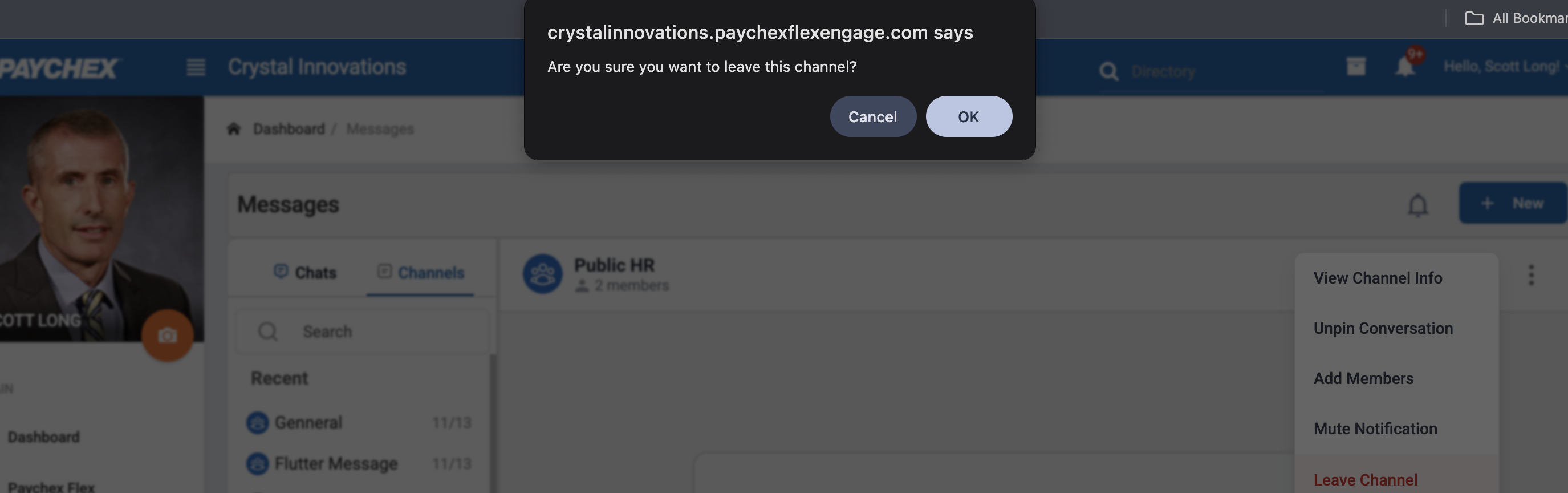
Click Leave Channel.
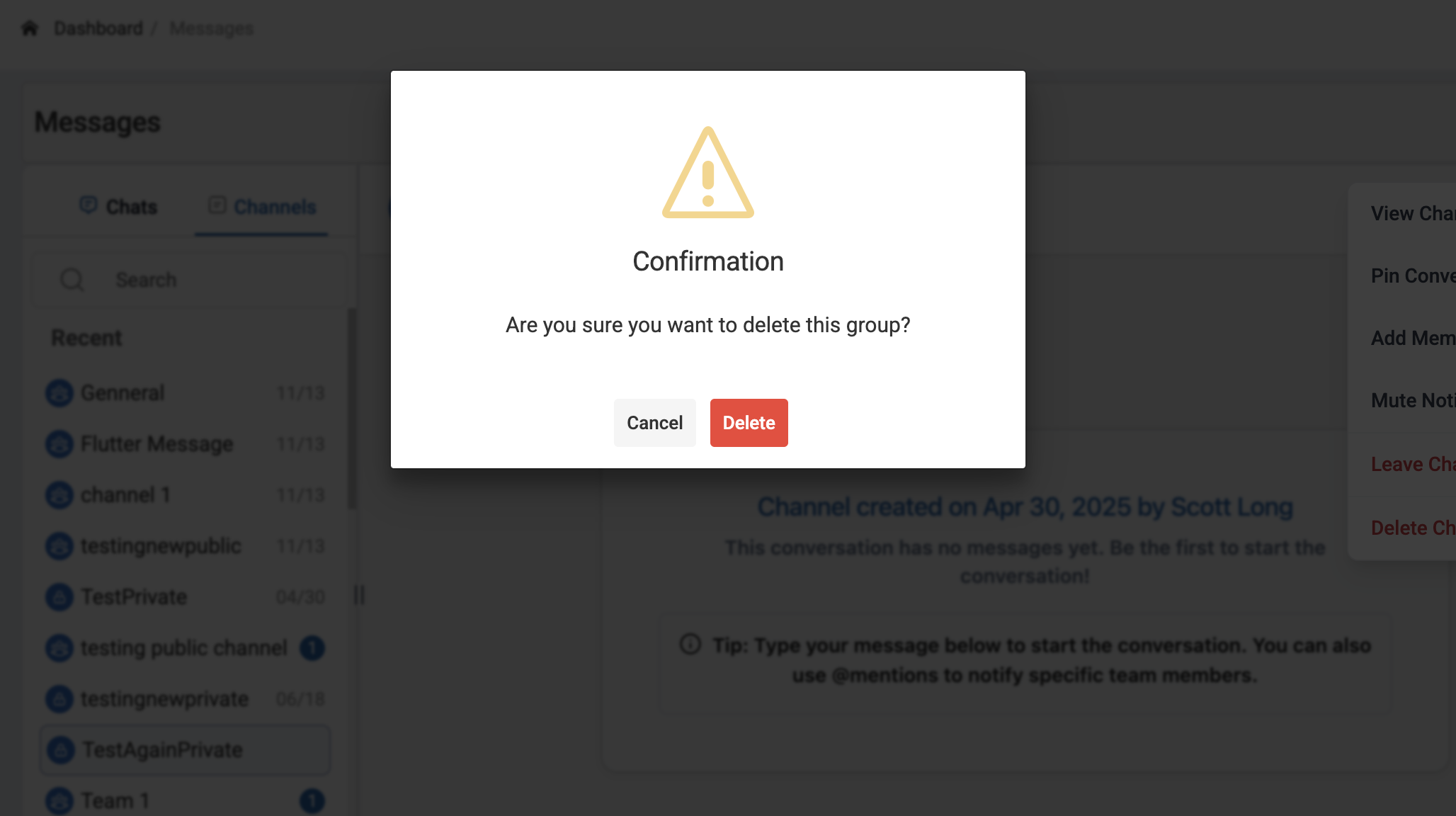
1.5 Deleting a Channel
Open the More options (⋮) menu.
Click Delete Channel.
Confirm the deletion.
Note:
Only Admins can delete channels.
Deleted channels are permanently removed.
All messages within the channel are no longer visible to users.
Was this article helpful?
That’s Great!
Thank you for your feedback
Sorry! We couldn't be helpful
Thank you for your feedback
Feedback sent
We appreciate your effort and will try to fix the article