STEP 1
Login to your Engage account.
STEP 2
Click on Goals on the left-hand menu.
STEP 3
Navigate to the goal you wish to copy.
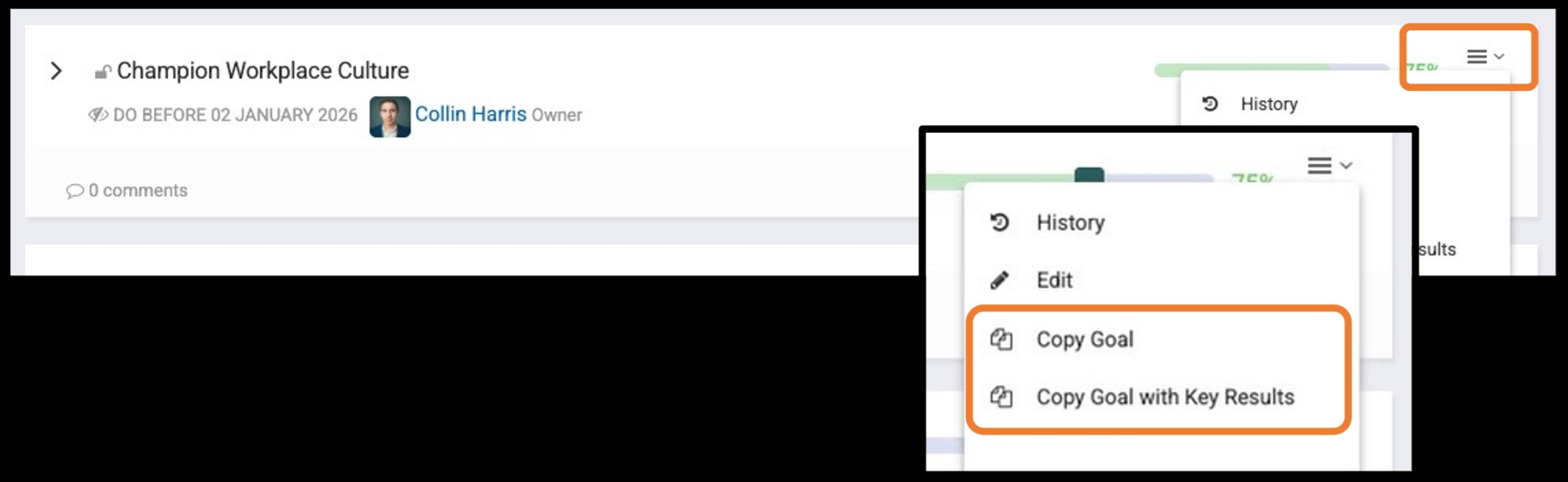
Click on the three (3) line icon on the far right hand side.

Select whether you would like to copy the Goal with or without the Key Results.
Whichever you select, it will copy the structure (including due dates), however if there is progress completion tied to the goal that is being copied, the new goal will be reset to 0% completion.
In this example, we will be copying the Goal with Key Results.


STEP 4
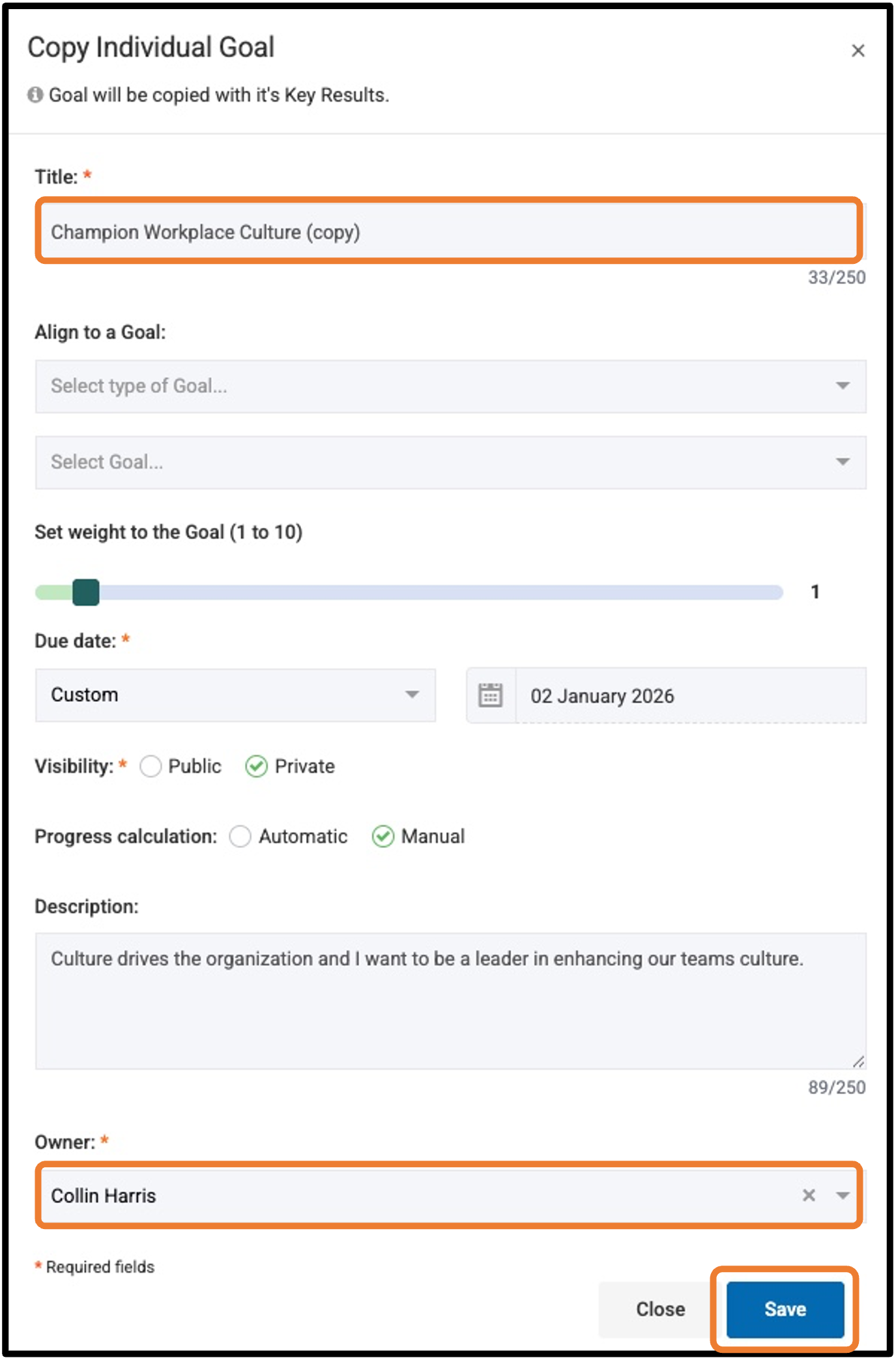
You will then be prompted with the Goal creation page.
Goal Title
It will keep the same title but add “(copy)” to the end of the title.
Feel free to make any additional changes to the structure of the goal.
Update the Goal Owner
The owner will default to the user that is copying the goal.
If you are copying the goal to assign to another team member, select their name from the drop-down menu
STEP 5
Save the goal by clicking the Save Button at the bottom of the window.
Was this article helpful?
That’s Great!
Thank you for your feedback
Sorry! We couldn't be helpful
Thank you for your feedback
Feedback sent
We appreciate your effort and will try to fix the article