This article is intended for Paychex Flex® Engage users with the following access:
Users with MANAGER Access Level
How to Update your Employees Goals
Login to your Paychex Flex® Engage account.
Click on My Team on the left-hand menu.
From your Team, please click on the Employee Name you would like to review.
From their profile, click on the Goals tab at the top of your screen.
Here you will see both Current and Past Goals with a quick-view of each due date, completion percentage, and weighting.
Click the dropdown to the left of each Goal title to see Key Results.

Filter by due date to narrow down your view.
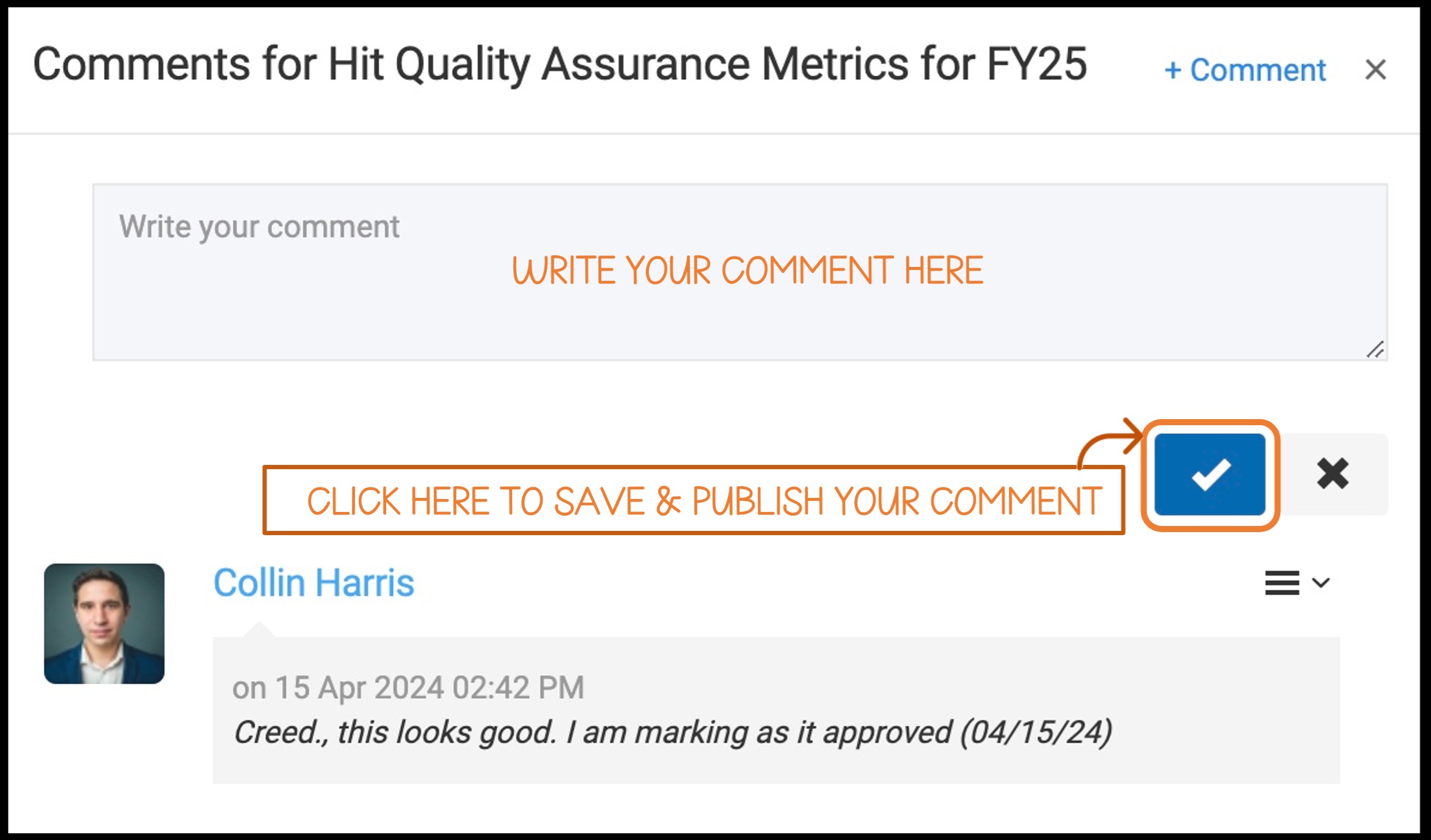
You have the ability to Add Comments to each Goal.
To add a comment, click on comments at the bottom of the Goal.
Click + Comment
Enter your comment in the text box and click on the Check Box Button to save.

Was this article helpful?
That’s Great!
Thank you for your feedback
Sorry! We couldn't be helpful
Thank you for your feedback
Feedback sent
We appreciate your effort and will try to fix the article