Tasks module provides users with a consolidated view of all tasks assigned to them, including personal tasks and tasks generated from workflows or team activities. It is designed to help users track progress, manage workload, and complete required actions efficiently.
Users can access Tasks from: Main > Tasks
This opens the task board view.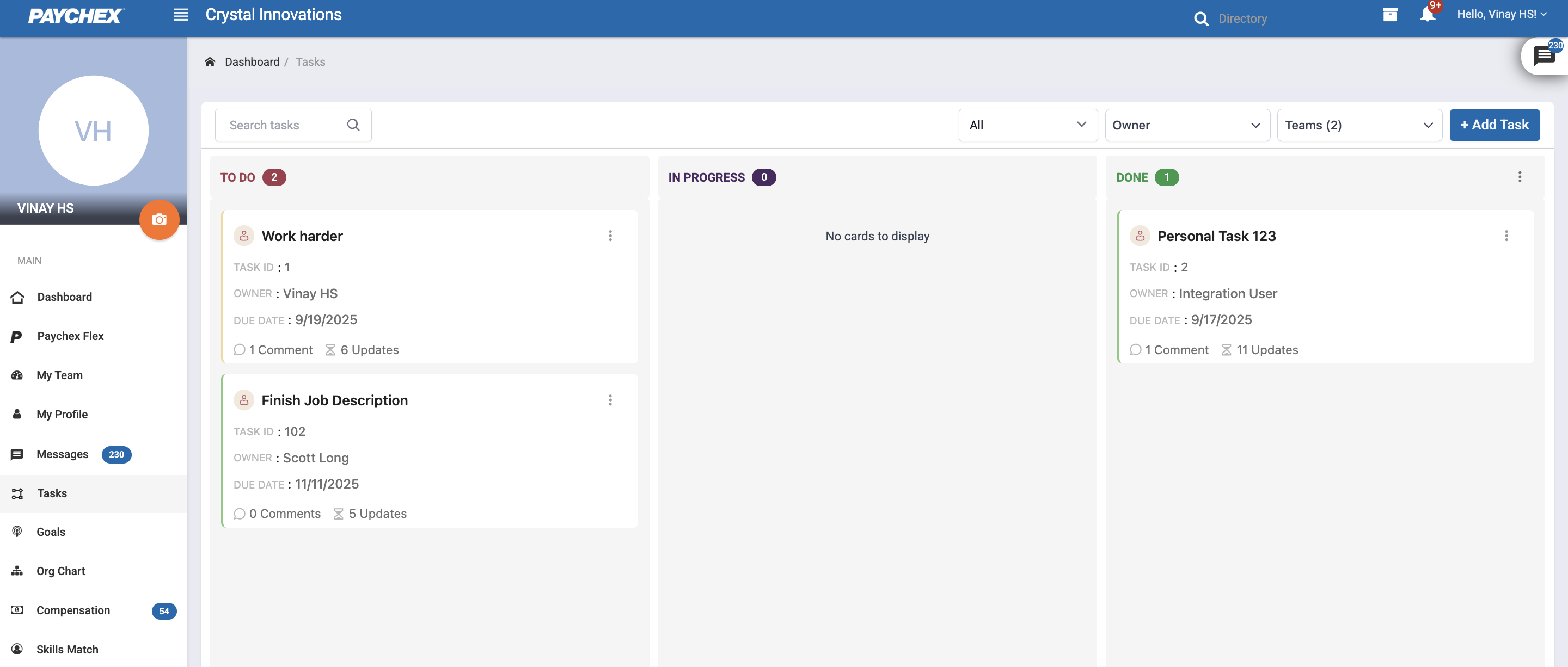
Task Board Layout
The Tasks interface is organized into three status columns, representing the task lifecycle:
To Do
In Progress
Done
Each column displays task cards with key information such as task name, task ID, owner, due date, comments, and updates.
Users can filter which tasks appear on the board by selecting between Task Type, Team and Owner.
Task Actions
From the Tasks board, users can:
Add a new task using the + Add Task button
Search tasks using the search bar
Open a task card to view details, comments, updates, and status
Drag and drop tasks to update status.
Task Card Information
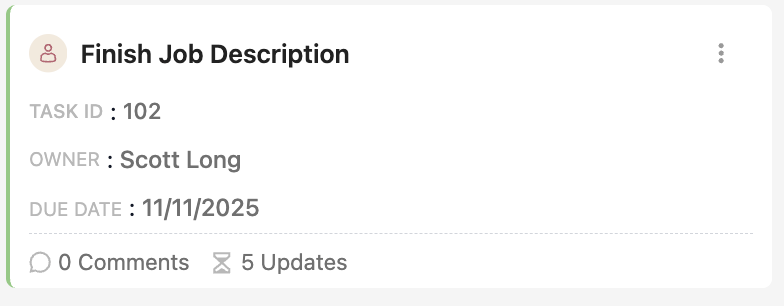
Each task card shows:
Task Name
Task ID
Owner
Due Date
Comment count
Update count
Icons and labels help identify task type (personal, team, workflow-driven) and visibility rules. Additionally card color stripe is based off of task priority.
Was this article helpful?
That’s Great!
Thank you for your feedback
Sorry! We couldn't be helpful
Thank you for your feedback
Feedback sent
We appreciate your effort and will try to fix the article