Adding and Publishing Form Templates
From Manage Forms > Click New Template to open the template creation screen.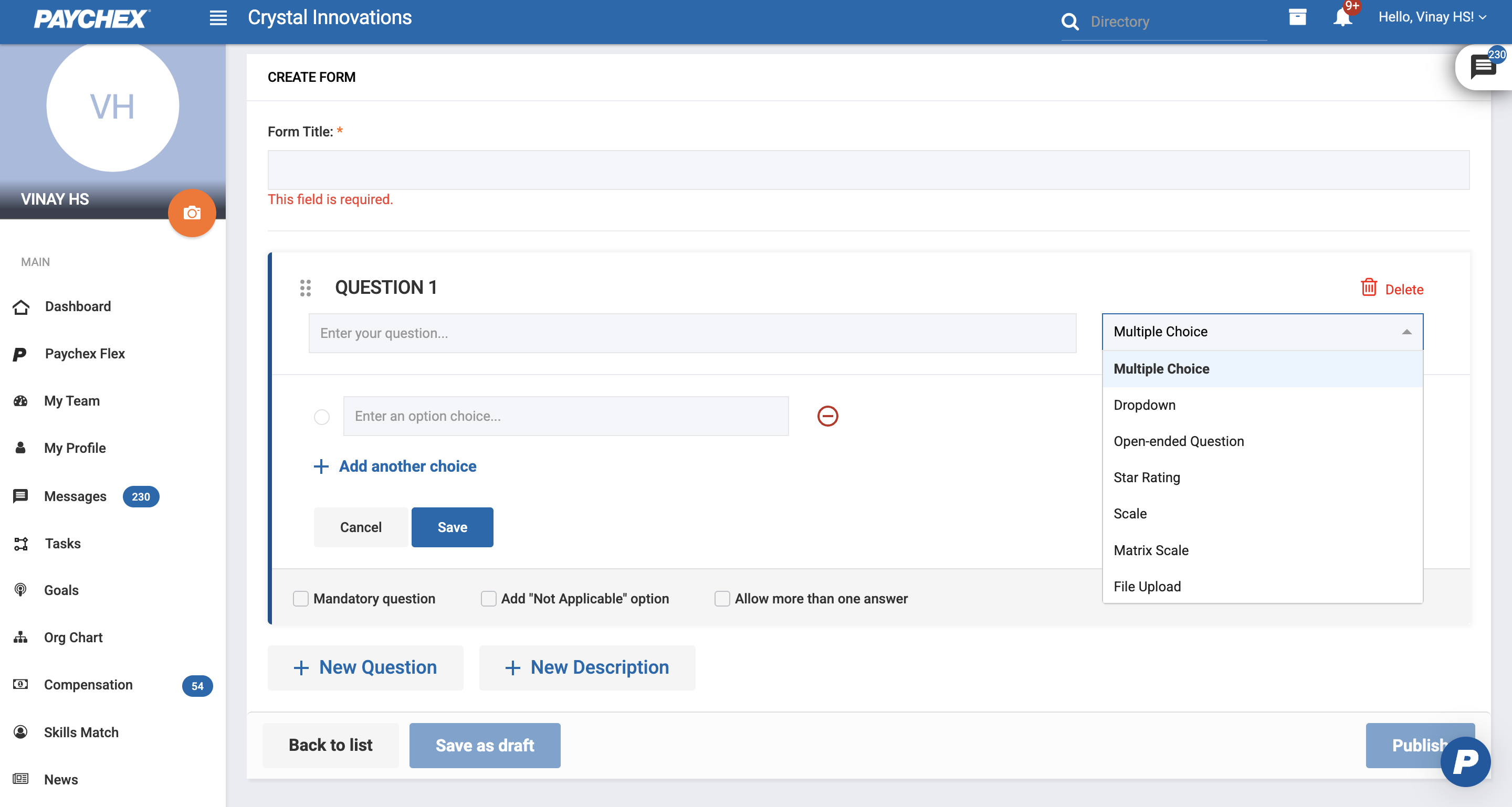
1.1 Template Creation
- In the Form Title field, enter the name of the form (required)
- Enter question content to insert first question into the template and hit save.
- The system supports the following types:
- Multiple Choice
- Dropdown
- Scale
- Star Rating
- Matrix
- Open-Ended
- File Upload
- To allow more than one selection, enable Allow more than one answer.
- To make the question required, enable Mandatory question.
- To permit users to skip with a predefined exemption, enable Add "Not Applicable" option.
- Repeat this step to add additional questions as needed by hitting New Question
- Click New Description to insert a descriptive text block.
1.2 Template Actions
Save as Draft: Stores the template in draft state.
Back to List: Returns to the Templates list without publishing.
Publish: Makes the template active and available for assignment.
1.3 Publishing Templates
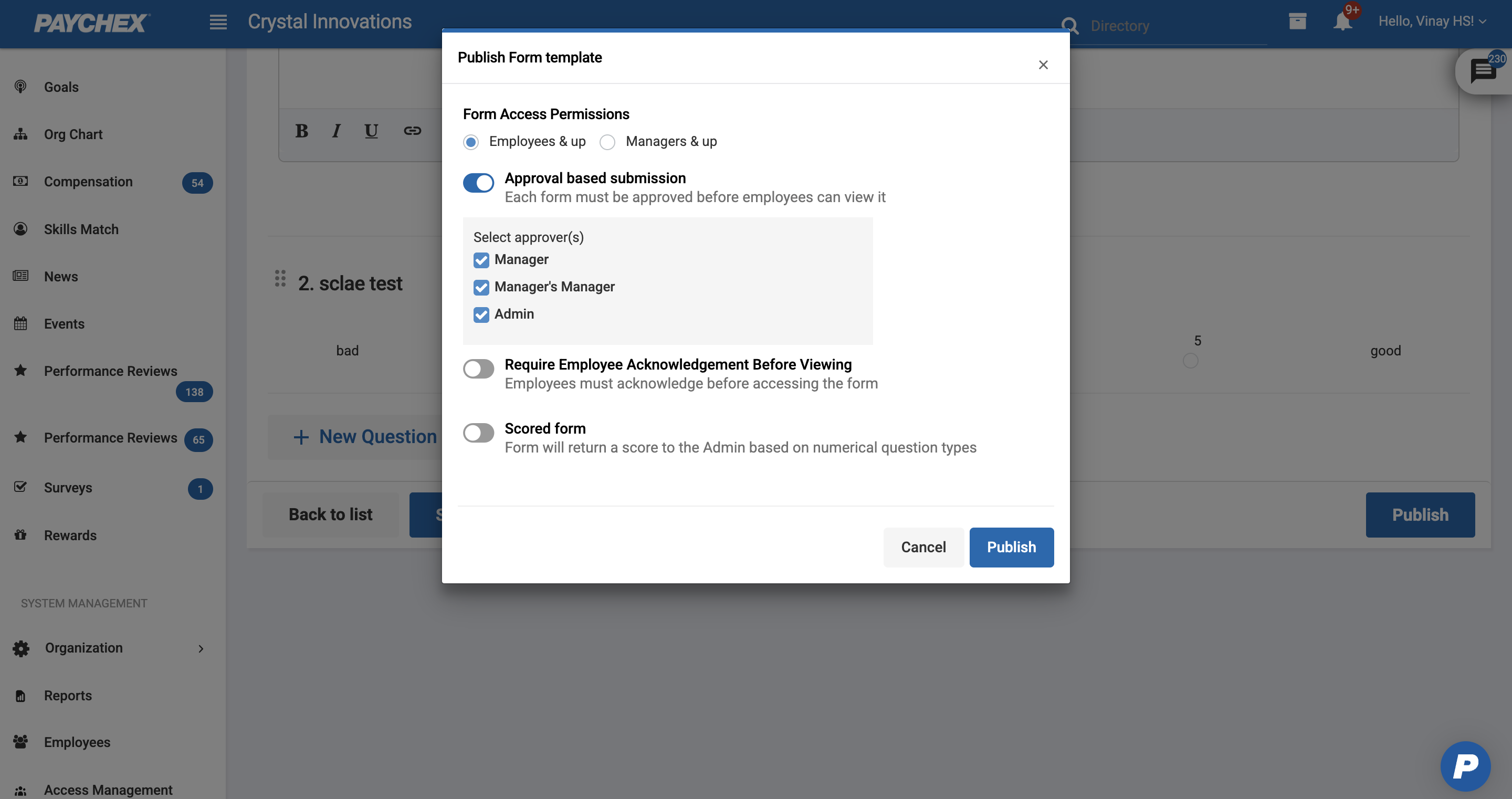
The Publish screen defines who can see the form, whether approval is required, and whether the form includes scoring.
- Form access permissions determine which users can receive and submit this form when it is assigned.
- There are two available access levels:
- Employees & Up: All employees and any higher-level roles can access the form.
- Managers & Up: Only users with managerial-level roles and above can access the form.
If the form requires review, enable the Approval Based Submission toggle.
This is a multi-select list containing the following approver types:Manager
Manager’s Manager
HR Admin
Administrators may select one or multiple approvers.
Require Employee Acknowledgement Before Viewing: Enable this toggle if the employee must acknowledge before they can view the form from their Profile.
If the template contains any scorable question types, then Scored Form toggle is visible.
Scored question types commonly include: Scale, Star Rating, Matrix
After, reviewing all the settings, hit Publish. Template will be ready for assignment.
Was this article helpful?
That’s Great!
Thank you for your feedback
Sorry! We couldn't be helpful
Thank you for your feedback
Feedback sent
We appreciate your effort and will try to fix the article