Forms module provides separate access points and capabilities for Managers and Employees.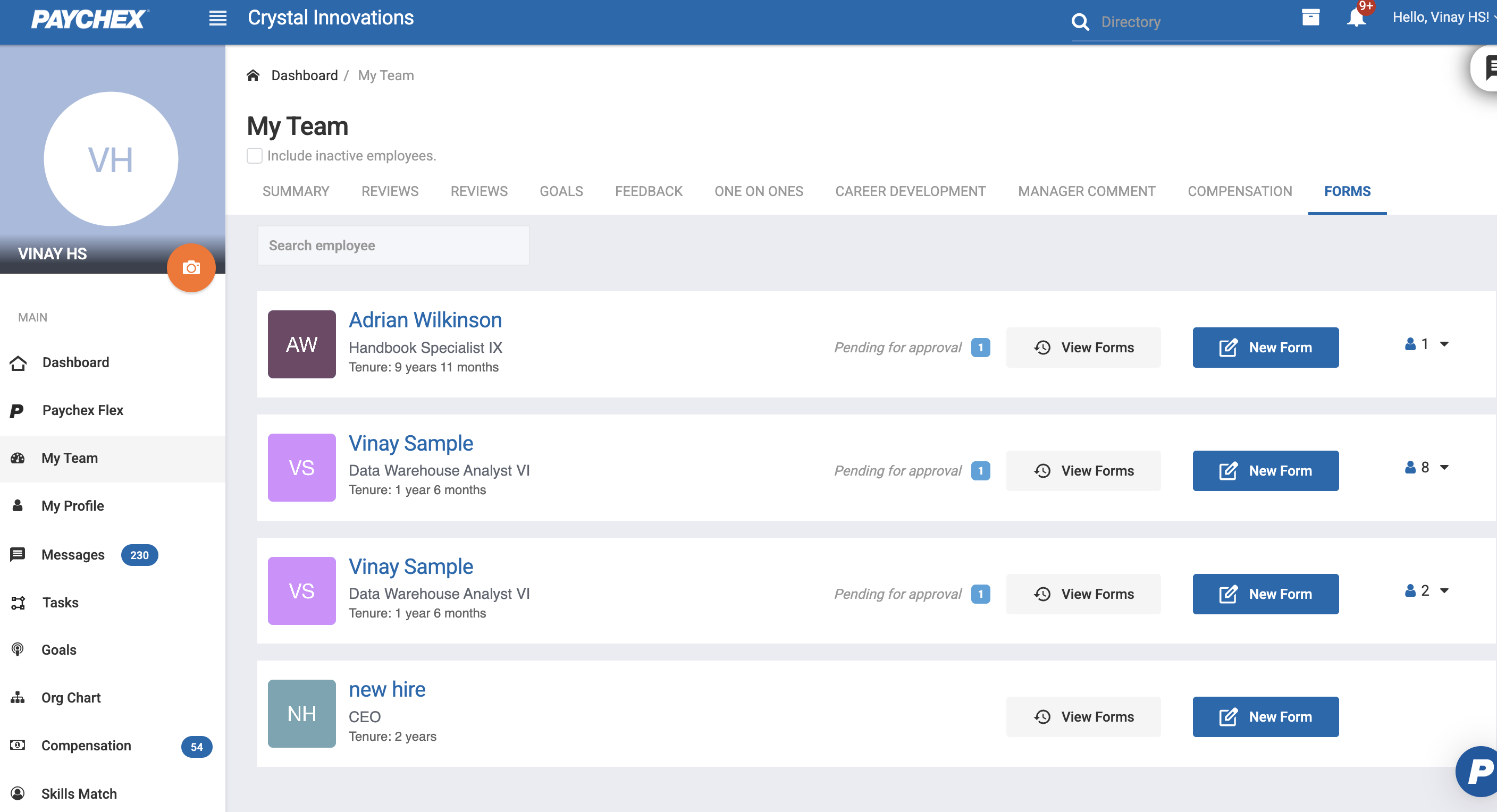
Manager Experience
Managers can submit forms on their direct reports through the My Team module.
1.1 Accessing Forms for Team Members
To manage forms for their team:
Navigate to My Team.
Select the Forms section.
A list of direct reports is displayed, each with available form actions.
1.2 Viewing Forms Submitted for their Direct reports
Managers can view all forms previously submitted on a specific direct report:
Locate the employee.
Click View Forms.
A list of all submitted forms for that employee is displayed, including Pending for Approval and History.
1.3 Submitting a New Form for an Employee
Managers can submit a new form on a specific direct report:
Locate the employee in the list.
Click New Form next to the employee’s name.
The manager will be presented with available templates they have access to.
Fill out the questions and hit Submit
Employee Experience
Employees can submit forms on themselves and review their own submission history through the My Profile section.
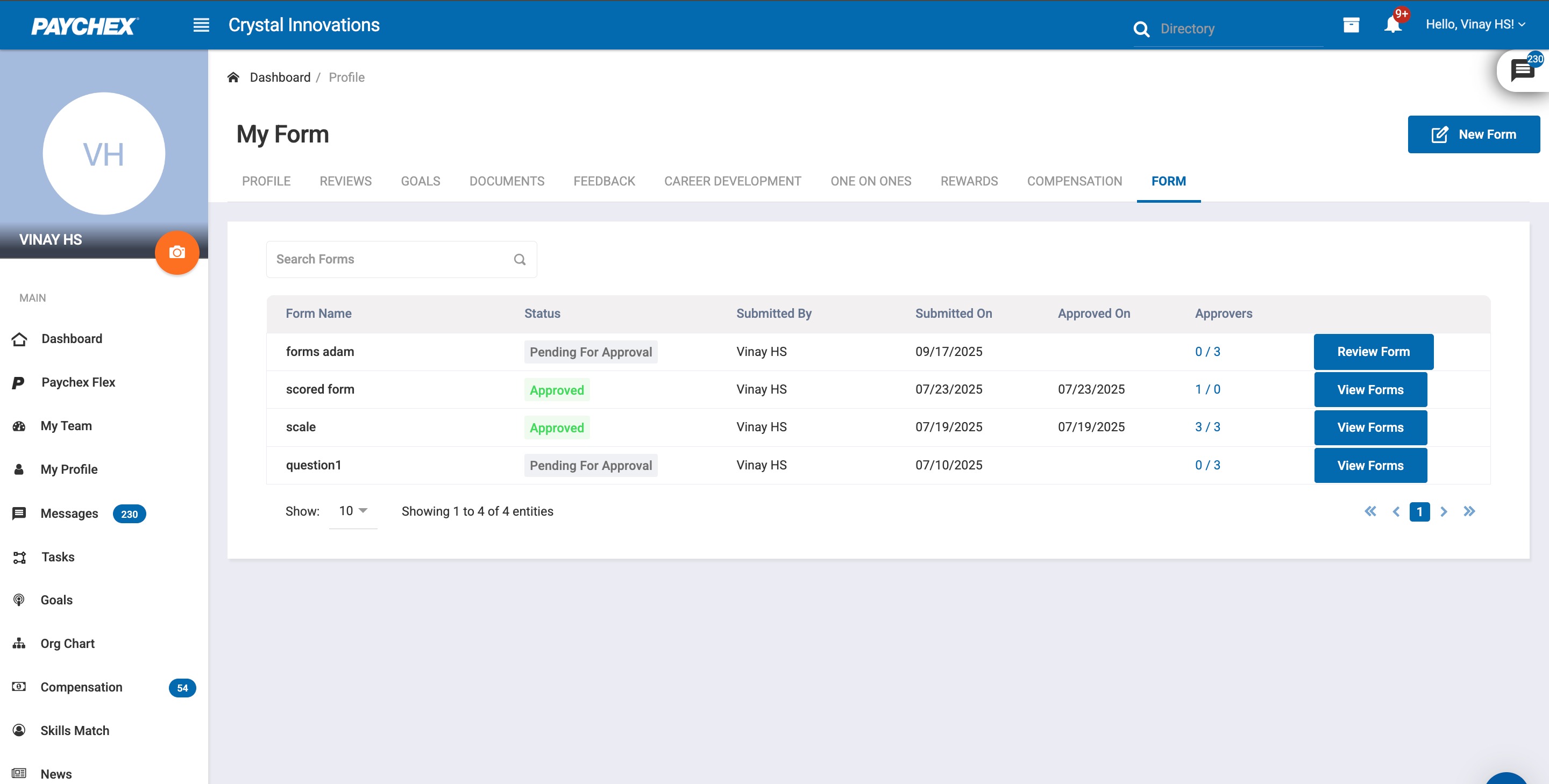
Navigate to My Profile.
Open the Forms tab.
2.2 Submitting a Form
Employees can create a new self-submitted form:
Click New Form.
A list of available form templates will appear based on Form Access Permissions (Employees & Up).
Fill out the questions and hit Submit.
All forms the employee has submitted on themselves or that were submitted about them are displayed in here and can be accessed by hitting View Forms button.
Was this article helpful?
That’s Great!
Thank you for your feedback
Sorry! We couldn't be helpful
Thank you for your feedback
Feedback sent
We appreciate your effort and will try to fix the article